
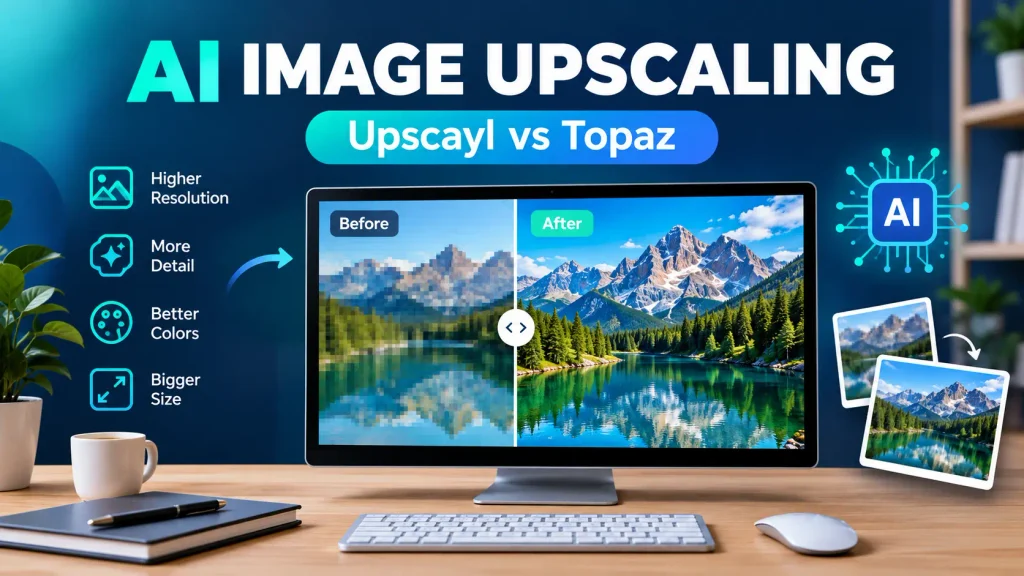
Upscayl / Topaz: AI Image Upscaling Tools to Enhance Image Quality
Images play an important role in websites, digital marketing, photography, graphic design, and social media. A clear, high-resolution image can make a website look more professional, improve the presentation of a product, and help visual content appear more attractive. However, not every image starts with the quality you need.
You might have an old photograph that looks pixelated, a small image downloaded from your camera, a compressed product picture, or an illustration that becomes blurry when enlarged. Traditional resizing methods can increase an image’s dimensions, but they often make existing imperfections more noticeable.
This is where AI image upscaling tools such as Upscayl and Topaz become useful.
These tools use artificial intelligence to analyze image patterns and generate additional visual detail when increasing resolution. Depending on the original image and the selected model, they can improve the appearance of edges, textures, and fine details.
Upscayl is particularly interesting for users looking for a free, open-source desktop image upscaler, while Topaz offers specialized image-enhancement products with different AI models and processing options.
In this guide, we will explore how AI image upscaling works, compare Upscayl and Topaz, explain how to use these tools, and share practical tips for achieving better results.
What Is AI Image Upscaling?
AI image upscaling is a process that increases an image’s pixel dimensions using artificial intelligence.
Every digital image consists of pixels. When an image has a low resolution, it contains fewer pixels to represent fine details. Enlarging it with a basic resizing method spreads the existing information across a larger area, which can produce a soft or pixelated result.
AI image upscaling works differently. It uses a trained model to analyze the image and estimate what additional visual information might fit the surrounding patterns.
For example, an AI upscaler may examine the edges of a building, the texture of a leaf, or the outline of a character before generating a higher-resolution version.
The result can appear sharper and more detailed than a conventional resize.
However, there is an important limitation: AI upscaling does not recover every detail that was never captured in the original image. It estimates missing information, and some generated details may not accurately represent the original subject.
This is why reviewing the final image is essential, especially when working with photographs, product images, documents, or other content where accuracy matters.
Why Do People Use AI Image Upscaling?
There are several common reasons to upscale an image.

Improving small images: A low-resolution image may need to be enlarged for a website, presentation, or digital project.
Preparing images for printing: Increasing pixel dimensions can help prepare a suitable image for a larger print, although the original quality still matters.
Enhancing digital artwork: Illustrations, game assets, and certain graphics may benefit from AI-assisted enlargement.
Improving product photography: Online stores sometimes need larger versions of existing product images for product pages and marketing materials.
Updating older photographs: Some older digital images can benefit from improved apparent sharpness and texture.
Preparing website graphics: Bloggers may need appropriately sized images for featured images, article illustrations, and other visual content.
The best results depend on the source image, the AI model, and the intended output size.
What Is Upscayl?
Upscayl is a free, open-source AI image upscaling application designed to enlarge images and improve their visual appearance.
Its desktop application is available for Windows, macOS, and Linux. The project uses AI upscaling models, including Real-ESRGAN-based technology, to process supported images.
One of Upscayl’s main advantages is accessibility. Users can install the desktop application and explore its image-upscaling capabilities without needing to purchase a traditional commercial image-enhancement subscription.
The desktop workflow also supports local image processing on compatible hardware, which can be useful for people who prefer to keep their image files on their own computers.
You can learn more and download the desktop application from the official website: https://upscayl.org/.
Main Features of Upscayl
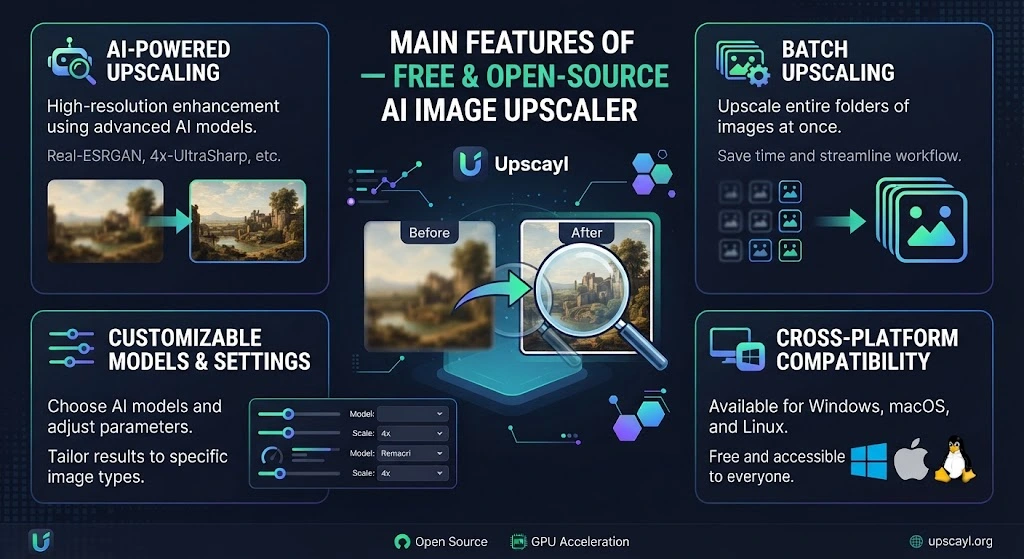
1. AI-powered image enlargement
Upscayl uses trained AI models to enlarge images and estimate additional visual detail.
2. Free and open-source desktop software
Its desktop application is an option for users who want an open-source image-upscaling workflow.
3. Multiple AI models
Different models can produce different results depending on the type of image. Choosing an appropriate model can improve the final appearance.
4. Batch processing
Supported workflows allow users to process multiple images, which can save time when working with collections of graphics or photographs.
5. Local processing
The desktop application can process images locally on compatible hardware after installation. This can be useful when working with private photographs or unpublished creative assets.
6. Support for different image types
Depending on the model, Upscayl can be useful for photographs, illustrations, digital artwork, and other supported images.
Who Should Use Upscayl?
Upscayl may be a good choice for:
- Bloggers who need larger website images.
- Students working on visual projects.
- Digital artists who want to enlarge certain illustrations.
- Content creators who need to upscale graphics.
- Users who prefer free and open-source software.
- People who want a local image-processing workflow.
However, hardware compatibility matters. Upscayl’s desktop application requires compatible graphics hardware for its supported processing workflow. Check the official documentation if the application does not start or fails to recognize your graphics hardware.
What Is Topaz AI Image Upscaling?
Topaz offers specialized AI-powered image-enhancement products designed to improve image resolution and visual quality.
For image upscaling, Topaz Gigapixel is one of its dedicated tools. Topaz also offers photo-enhancement software with additional capabilities, depending on the product and current version.
Topaz’s AI models can help enlarge images while attempting to preserve or improve details such as edges, textures, and facial features.
The software provides options for different types of source images, allowing users to choose an approach that matches their requirements.
For example, a photographer may want to enlarge a detailed landscape photograph while preserving natural textures. A graphic designer may need to upscale an illustration without introducing unwanted changes to its shapes.
Different models may produce different results, so testing settings is an important part of the workflow.
Explore the official products here:
- Topaz Gigapixel: https://www.topazlabs.com/gigapixel
- Topaz Photo: https://www.topazlabs.com/topaz-photo
Main Features of Topaz Image Upscaling
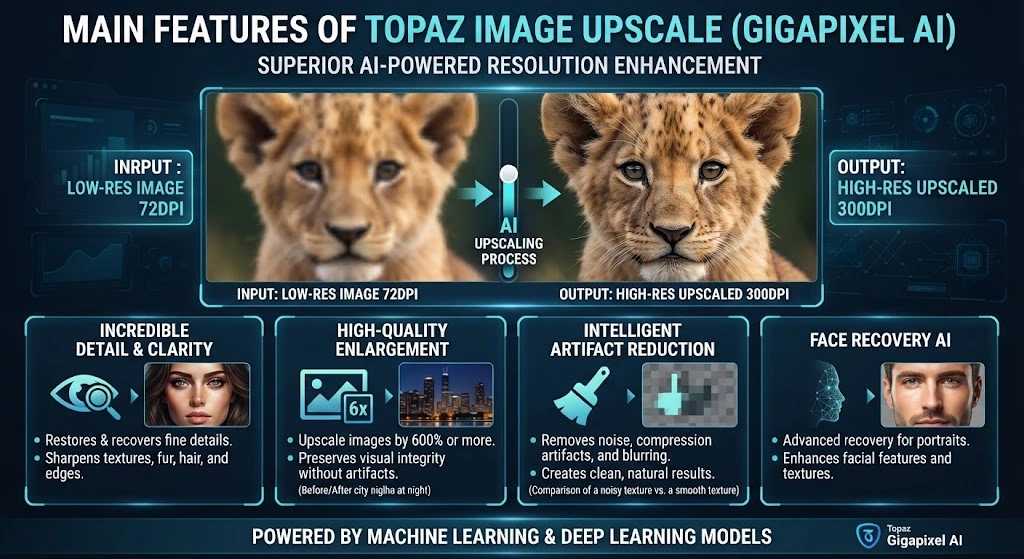
1. AI-powered resolution enhancement
Topaz Gigapixel can increase image dimensions using supported AI upscaling models.
2. Multiple AI models
Different models are designed for different image characteristics and enhancement requirements. The most suitable option depends on the source image and the desired result.
3. Custom output dimensions
Supported workflows allow users to specify an enlargement factor or particular image dimensions.
4. Image-quality adjustments
Depending on the product and workflow, additional controls may help address issues such as noise, softness, or compression artifacts.
5. Photography-focused workflows
Topaz products can be useful for photographers who need more control over the enhancement of their images.
6. Local and cloud processing options
Available processing methods depend on the specific product, subscription, and version. Check the current product documentation before choosing a workflow.
Who Should Use Topaz?
Topaz may be worth considering for:
- Professional and enthusiast photographers.
- Graphic designers who work with high-quality visual assets.
- Digital artists who need specialized enlargement options.
- Businesses that regularly process image collections.
- Creators who want more control over AI enhancement.
- Users who need an image-processing workflow tailored to particular image types.
Topaz is a commercial product family, so review its current pricing, licensing conditions, and system requirements before purchasing.
Upscayl vs Topaz: Which Image Upscaler Is Better?
Upscayl and Topaz both use AI to help enlarge images, but they are designed around somewhat different user needs.
Upscayl is an attractive starting point for people who want a free, open-source desktop tool. Topaz provides specialized commercial products with a broader selection of professional image-enhancement workflows.
Neither tool is automatically better for every image. Results depend on the source material, the selected model, the hardware, and the intended use.

Feature Comparison
| Feature | Upscayl Desktop | Topaz Gigapixel |
|---|---|---|
| Main purpose | AI image upscaling | Specialized AI image upscaling |
| Cost model | Free and open-source desktop application | Commercial product |
| Supported systems | Windows, macOS, Linux | Check current product requirements |
| AI models | Multiple supported models | Multiple specialized models |
| Batch processing | Supported workflows | Supported workflows |
| Local processing | Yes, on compatible hardware | Available, depending on product and workflow |
| Cloud processing | Separate offerings may be available | Availability depends on product and plan |
| Best suited for | Budget-conscious users and general image enlargement | Users seeking specialized image-enhancement options |
| Learning curve | Generally approachable | Depends on the product and chosen controls |
| Best choice | Users who prefer free desktop software | Users whose needs justify a commercial workflow |
Features and availability can change, so consult the official documentation for the latest details.
1. Which Tool Produces Better Image Quality?
There is no universal winner.
A particular Topaz model may produce a more suitable result for one photograph, while Upscayl may produce a satisfactory result for another image.
For example, an illustration with clean outlines may respond differently from a compressed photograph of a person.
To make a meaningful comparison, use the same source image, create outputs at the same dimensions, and examine both results at the intended viewing size.
Pay attention to natural textures, edge quality, facial details, and unwanted artifacts.
2. Which Tool Is Better for Beginners?
Upscayl is a reasonable starting point for beginners who want to try desktop AI upscaling without purchasing a commercial product.
Its general workflow is straightforward: select an image, choose a suitable model and output settings, process the image, and inspect the result.
Topaz can also be approachable, but the additional model choices and enhancement options may require experimentation.
The best option is the one that meets your needs without making your workflow unnecessarily complicated.
3. Which Tool Is Better for Professional Work?
The answer depends on the requirements of the project.
Photographers and designers who regularly work with detailed images may benefit from testing Topaz’s specialized models and controls.
Creators who need straightforward enlargement and prefer open-source software may find Upscayl sufficient.
Before using either tool for client work, evaluate the image quality, processing time, licensing terms, and hardware requirements.
4. Which Tool Is Better for a Limited Budget?
Upscayl Desktop is an appealing option because its desktop application is free and open source.
Topaz is commercial software, so its cost should be considered alongside the benefits of its available features.
If you only upscale images occasionally, start by testing the free option. Consider a paid product if you need capabilities that your current workflow cannot provide.
How to Upscale an Image Using Upscayl
If you want to improve the resolution of an image without purchasing software, Upscayl Desktop is a useful place to start.
The exact interface may vary by version, but the general workflow follows these steps.

Step 1: Visit the Official Website
Open https://upscayl.org/ and locate the desktop download for your operating system.
Download the installer from the official source and follow the installation instructions.
Avoid downloading installers from unfamiliar websites because unofficial downloads may be outdated or unsafe.
Step 2: Open the Application
After installation, launch Upscayl on your computer.
Check that your graphics hardware is compatible with the application’s requirements.
If the application fails to run, consult the official documentation before troubleshooting further.
Step 3: Select Your Image
Choose the image you want to enlarge.
For your first test, select a small image that contains recognizable details, such as a landscape, illustration, or product photograph.
Keep a copy of the original file so you can compare the results.
Step 4: Choose an AI Model
Upscayl provides model options for different types of image content.
Depending on the available models, you may find that one works better for photographs while another produces more suitable results for illustrations or stylized artwork.
If you are unsure which model to use, test a few options on the same image.
Step 5: Select the Output Settings
Choose the desired enlargement settings and output location.
For example, if you want a larger image for a website, select dimensions that fit the layout without generating unnecessarily large files.
An image that is much larger than required can increase storage needs and slow down a webpage.
Step 6: Start the Upscaling Process
Run the upscaling operation and wait for the application to finish processing the image.
Processing time depends on the image dimensions, selected model, computer hardware, and other factors.
Step 7: Compare the Results
Open the original and enlarged images side by side.
Look for improved edges and textures, but also check for unnatural details or artifacts.
If the result appears too sharp or contains unwanted changes, try another model or a different enlargement factor.
Step 8: Save the Final Image
Save the processed image in a suitable location.
Use a descriptive filename and preserve the original image in case you need to try different settings later.
How to Upscale Images Using Topaz Gigapixel
Topaz Gigapixel provides an AI-assisted workflow for enlarging images.
The exact controls vary by version, but the general process is similar across image-upscaling applications.

Step 1: Choose the Appropriate Product
Visit the official Topaz website and review the available image-upscaling products.
Check the system requirements, current pricing, and licensing conditions before installing or purchasing software.
Step 2: Import Your Image
Open the application and select the source image you want to enlarge.
Whenever possible, use the original, highest-quality version available rather than a repeatedly compressed copy.
Step 3: Choose the Upscaling Method
Topaz Gigapixel provides options for enlarging an image by a scale factor or specifying output dimensions.
For example, a 1,000-pixel-wide image enlarged by a factor of two becomes approximately 2,000 pixels wide, assuming the original aspect ratio is preserved.
Choose an enlargement factor that matches your actual requirements.
Step 4: Select an Appropriate AI Model
Review the available models and choose one suited to the source image.
A photograph, a digital illustration, and an image containing small text may require different approaches.
Some models may generate stronger detail, while others may prioritize preserving the original appearance.
Step 5: Preview the Image
Inspect the preview before processing the entire image.
Pay attention to fine textures, edges, faces, and other important details.
If the image looks unnatural, try another model or reduce the enlargement factor.
Step 6: Process and Export
Run the upscaling operation and save the finished image in an appropriate format.
Keep the original file so you can compare results and return to the source if necessary.
Step 7: Review the Exported Image
Open the exported file in an image viewer or editing application.
Check the final dimensions, image quality, file size, and appearance at the intended viewing scale.
This final review helps ensure that the image is suitable for its intended purpose.
Best AI Image Upscaling Settings for Different Images
Different types of images respond differently to AI upscaling.
Choosing an appropriate model and enlargement factor can improve the chances of getting a useful result.

Upscaling Portraits and People
Portraits contain important details, including eyes, skin texture, hair, and facial structure.
When enlarging a portrait, aim for a natural result rather than maximum sharpness.
Check that the person’s facial features remain consistent with the original photograph.
AI enhancement can alter details, so avoid treating an upscaled portrait as an exact recovery of missing information.
Upscaling Landscape Photography
Landscape images contain varied textures, such as leaves, clouds, water, rocks, and distant mountains.
An AI model may improve the appearance of some textures, but it can also create repetitive or artificial patterns.
Compare the sky, foliage, water, and mountain edges before choosing the final output.
Upscaling Product Images
Product photographs need clear outlines and accurate visual details.
An image upscaler can help enlarge a suitable product image, but it should not change the appearance of the actual product.
Check labels, logos, colors, packaging, and small product features carefully.
If the image will be used in an online store, accuracy is more important than making the product appear artificially perfect.
Upscaling Illustrations and Digital Art
Illustrations may contain clean outlines, flat colors, and stylized shapes.
Some AI models work better with this type of artwork than with photographs.
Check whether the enlarged image preserves the original linework, proportions, and intended visual style.
For cartoon or anime artwork, test models specifically intended for illustrated content when available.

Upscaling AI-Generated Images
Images created by AI tools may contain unusual textures or inconsistent details.
Upscaling can make the image larger and improve its perceived sharpness, but it may also amplify existing flaws.
Inspect faces, hands, small objects, and background details before using the result.
Common AI Image Upscaling Mistakes to Avoid
AI image upscaling can improve a suitable image, but certain mistakes can reduce the quality of the final result.

Mistake 1: Choosing an Extremely Large Enlargement Factor
Increasing an image by a very large amount does not guarantee a better result.
The AI must estimate more missing information as the enlargement factor increases, which can make artifacts more noticeable.
Start with a moderate enlargement and inspect the output before trying a larger size.
Mistake 2: Expecting Upscaling to Fix Every Blur
Upscaling and deblurring are different tasks.
An image that is slightly pixelated may benefit from upscaling, while a photograph that is severely out of focus may remain unusable.
Some enhancement tools provide additional sharpening or restoration features, but they cannot guarantee recovery of the original details.
Mistake 3: Using the Wrong AI Model
A model designed for photographs may not be ideal for a cartoon or illustration.
If the output looks unnatural, try another model that better matches the image type.
Mistake 4: Ignoring the Original Image
The original image strongly influences the final result.
A clean, reasonably detailed source generally gives an upscaler more useful information to work with than a severely compressed image.
Whenever possible, begin with the best-quality original file available.
Mistake 5: Saving an Unnecessarily Large File
Larger images require more storage and may take longer to load on a website.
Choose output dimensions according to the actual display requirements.
For website images, also consider compression, file format, and page performance.
Mistake 6: Trusting AI-Generated Details Without Checking Them
An upscaler may create plausible-looking details that were not present in the original.
This can be particularly problematic for faces, product labels, historical photographs, documents, and technical imagery.
Always compare the output with the original before using it where accuracy matters.
AI Image Upscaling for Bloggers and Website Owners
Bloggers often need images for featured graphics, article illustrations, tutorials, and social media promotions.
Sometimes a useful image is available only at a small resolution. AI upscaling can help prepare it for a larger display, provided the source image is suitable.
For example, a blogger might have a small illustration that needs to be used in a larger article graphic.
Upscaling may help make the illustration more suitable, but the final dimensions should still match the website layout.

Improve Blog Featured Images
Featured images help introduce an article and give readers a visual idea of its subject.
If a suitable source image is too small, an AI upscaler may help enlarge it.
However, upscaling should not replace selecting a suitable image in the first place. A high-resolution original is usually preferable when available.

Prepare Images for Social Media
Social media platforms display images at different sizes and aspect ratios.
An upscaler can increase image dimensions, but it does not automatically change the composition or guarantee that the image will fit every platform.
After upscaling, crop or resize the image as needed and check the final layout.

Improve Digital Illustrations
Educational blogs sometimes use diagrams, icons, and illustrations.
AI upscaling may help enlarge certain illustrations, especially when the selected model is suitable for the artwork.
For diagrams containing small text, verify that all labels remain accurate and readable.
In some cases, recreating the graphic as a vector illustration may produce better results than upscaling a small raster image.

Does AI Image Upscaling Improve Website SEO?
AI image upscaling can support website content preparation, but it does not directly guarantee better search rankings.
Search engines evaluate many aspects of a webpage, including relevance, usefulness, technical performance, and user experience.
Images contribute to that experience when they are clear, relevant, and appropriately optimized.
If you use an AI upscaler for website graphics, consider these practices:
Use appropriate dimensions. Export images at a size suitable for their display area.
Compress images carefully. Large files can slow down webpages, so balance image quality and file size.
Choose descriptive filenames. For example, ai-image-upscaling-guide.webp is more informative than image123-final-new.png.
Write useful alt text. Describe the actual image naturally rather than repeating keywords unnecessarily.
Use relevant visuals. Images should support the surrounding article and help readers understand the topic.
Avoid unnecessary enlargement. Increasing an image far beyond its display requirements may increase file size without improving the user experience.
Preserve image accuracy. Do not use AI enhancement to create misleading visual details.
Remember that an upscaled image is not automatically optimized for search engines. Image quality, relevance, accessibility, and page performance all matter.
Is Upscayl Better Than Topaz for Free Image Upscaling?
For users who want a free desktop application, Upscayl is a strong starting point because its desktop software is free and open source.
Topaz Gigapixel is a commercial alternative that may be worth considering if its specialized models and workflow provide benefits for your projects.
Before choosing, consider how often you upscale images, which image types you process, what output quality you need, and whether your computer meets the software requirements.
If you only need to enlarge occasional blog graphics or illustrations, start with Upscayl.
If you regularly process photography or require particular enhancement controls, evaluate Topaz using representative images before making a purchasing decision.
A practical test with your own files is more useful than relying only on general claims about which tool is best.
Frequently Asked Questions About Upscayl and Topaz
1. What is the best AI image upscaler?
The best tool depends on your image type, budget, hardware, and desired output. Upscayl is a useful free, open-source desktop option, while Topaz Gigapixel provides a commercial image-upscaling workflow with specialized AI models.
2. Is Upscayl free?
Yes. Upscayl Desktop is a free, open-source application. Check the official website for current download options and details about other offerings.
3. Is Topaz Gigapixel free?
Topaz Gigapixel is a commercial product. Check the official Topaz website for current trial availability, pricing, and subscription terms.
4. Can AI upscale an image without losing quality?
AI upscaling can improve perceived sharpness and generate additional detail, but it cannot guarantee that every original detail will be preserved or recovered. The result depends on the source image and selected model.
5. Can I upscale a low-resolution image to 4K?
An AI upscaler may enlarge an image to dimensions suitable for a 4K workflow, depending on the source image and available output settings. However, the resulting image will not necessarily contain the same genuine detail as a photograph originally captured at 4K resolution.
6. Does Upscayl work offline?
Upscayl Desktop can process images locally after installation on compatible hardware. Downloading the application and receiving updates require internet access, but local processing does not generally require uploading each image to an online service.
7. Does Topaz support batch image upscaling?
Topaz products provide batch-processing workflows, although the available options depend on the product and version. Consult the official documentation for the exact capabilities of your software.
8. Can image upscaling fix blurry photographs?
Upscaling may improve the appearance of some low-resolution images, but it does not reliably fix severe motion blur or out-of-focus photographs. Specialized restoration tools may help in some cases, but results are not guaranteed.
9. Which image format should I use after upscaling?
PNG can be useful for graphics that need lossless storage, while JPEG is often suitable for photographs. WebP may be useful for website delivery when supported by your workflow. Choose the format according to the image type and intended use.
10. Can I use upscaled images commercially?
Commercial use depends on the rights to the original image, the software’s licensing terms, and any applicable restrictions. Upscaling an image does not automatically give you permission to use copyrighted material commercially.
11. Is AI image upscaling useful for product photography?
It can help enlarge suitable product photographs, but you must verify that labels, colors, shapes, and other product details remain accurate. Do not rely on generated details to represent a product’s actual appearance.
12. Does AI image upscaling help website performance?
Upscaling itself does not improve page speed. Larger images can increase file sizes, so resize and compress the final output appropriately for your website.
Final Thoughts
AI image upscaling has become a useful option for people who need to enlarge images while improving their apparent detail and sharpness.
Upscayl offers a free, open-source desktop workflow that is worth exploring, particularly for users who prefer local image processing. Topaz Gigapixel provides a commercial alternative with specialized AI models and image-enhancement options.
Neither tool is perfect for every image. The best results depend on the source material, the selected model, the enlargement factor, and the intended use.
For beginners, a sensible approach is to test Upscayl first, compare the results with the original, and explore other tools if your requirements are not being met.
Whether you are preparing blog graphics, digital artwork, product photographs, or personal images, focus on natural-looking details, appropriate output dimensions, and accurate visual information.
Ready to try AI image upscaling? Explore Upscayl for a free, open-source desktop option or visit Topaz Labs to learn about its image-enhancement products.