
Canva (Magic Studio): design, social media posts
Canva Magic Studio: Design Stunning Social Media Posts with AI

Creating attractive graphics for social media, websites, and online businesses has become an important part of digital marketing. Whether you run a blog, manage a small business, promote products, or create educational content, professional visuals can help you communicate your ideas and attract attention. However, designing graphics from scratch can take time, especially if you do not have professional design experience.
This is where Canva Magic Studio becomes useful.
Canva Magic Studio brings artificial intelligence into the design process, helping users explore creative ideas, generate designs, edit images, and develop visual content more efficiently. Instead of spending hours arranging every element manually, you can use AI-assisted features to establish a starting point and then customize the result according to your needs.
From Instagram posts and Facebook graphics to Pinterest pins and YouTube thumbnails, Canva provides tools that can support many everyday content creation tasks.
In this guide, we will explore what Canva Magic Studio is, how its main features work, how to create social media posts with AI, and how bloggers, marketers, and business owners can use it effectively.
What Is Canva Magic Studio?
Canva Magic Studio is a collection of AI-powered creative tools integrated into the Canva design platform. These tools help users with different stages of visual content creation, including generating design concepts, working with text, creating images, editing visuals, and adapting designs to different formats.
Traditional graphic design often requires you to choose a canvas, select colors, arrange elements, and adjust typography before reaching a finished result. Canva Magic Studio can simplify some of these steps by helping you develop an initial concept from a description or existing design.
For example, imagine that you own an online clothing store and want to promote a new collection on Instagram. You can start with a description of your campaign, explore a suitable design concept, and customize the result with your product photographs, brand colors, and promotional message.
This approach can make visual content creation more accessible to beginners while helping experienced creators explore ideas more quickly.
Canva Magic Studio can be useful for:
- Bloggers who need featured images and promotional graphics.
- Social media managers who create content for multiple platforms.
- Small businesses that want professional-looking marketing materials.
- Students who prepare presentations and educational visuals.
- Freelancers who create graphics for clients.
- Digital marketers who develop promotional campaigns.
- Content creators who publish tutorials, videos, and online resources.
You can explore the available features on the official Canva website.
Why Is Canva Magic Studio Useful for Social Media?
Social media content requires more than a good caption. Images, colors, typography, and layout also influence how people understand a message.
Creating content for several platforms can become difficult because each platform has different formats and audience expectations. A business might need a square promotional graphic, a vertical Story, a Pinterest pin, and a YouTube thumbnail for the same campaign.
Canva Magic Studio can help simplify this process by bringing AI-assisted design and editing features together.

Faster Content Creation
Creating every graphic manually can be time-consuming. AI-assisted tools can help generate initial concepts and layouts, reducing the amount of repetitive work involved in starting a project.
You can then spend more time refining the message, checking the visual quality, and adapting the content to your audience.
Beginner-Friendly Design
You do not need to be an experienced graphic designer to begin exploring Canva’s design tools.
Templates, visual editing controls, and AI-assisted features can help beginners develop attractive graphics without mastering complicated design software.
Creative Inspiration
Sometimes the hardest part of designing a post is deciding how it should look.
AI-generated concepts can provide inspiration when you are unsure about the layout, visual style, or composition. You can compare different directions and choose one that fits your brand.
Consistent Branding
A recognizable visual identity can help your audience identify your content across different platforms.
By applying consistent colors, fonts, logos, and design elements, you can adapt AI-generated designs to match your brand.
Support for Different Content Formats
Canva supports many types of visual projects, including social media graphics, presentations, promotional materials, and other digital designs.
The specific AI features available depend on the design workflow and your account.
Main Features of Canva Magic Studio
Canva Magic Studio includes several AI-assisted features that support different creative tasks. The names, availability, and functionality of individual tools can change, so check Canva’s current interface for the latest options.

1. Magic Design: Generate Creative Designs with AI
Magic Design helps users explore design concepts based on their ideas and, in supported workflows, supplied media.
Instead of starting with a completely blank canvas, you can describe the type of design you need and explore suitable starting points.
For example, a fitness coach might want an Instagram graphic promoting a beginner workout program.
A useful prompt could be:

“Create a professional Instagram post promoting a beginner fitness program. Use energetic but clean visuals, dark green and white colors, readable typography, and a balanced layout. Leave space for a short headline, a brief description, and a brand logo.”
After generating a concept, customize the text, colors, images, and spacing.
Magic Design can be useful for promotional graphics, educational posts, presentations, and other supported design formats.
The generated result should be treated as a starting point rather than a finished design that requires no review.
2. Magic Write: Create Better Text for Your Designs
Text is an important part of effective social media content. A graphic may look attractive, but an unclear headline can make its purpose difficult to understand.
Magic Write is Canva’s AI-assisted writing feature. It can help users brainstorm ideas, draft text, and refine wording for creative projects.
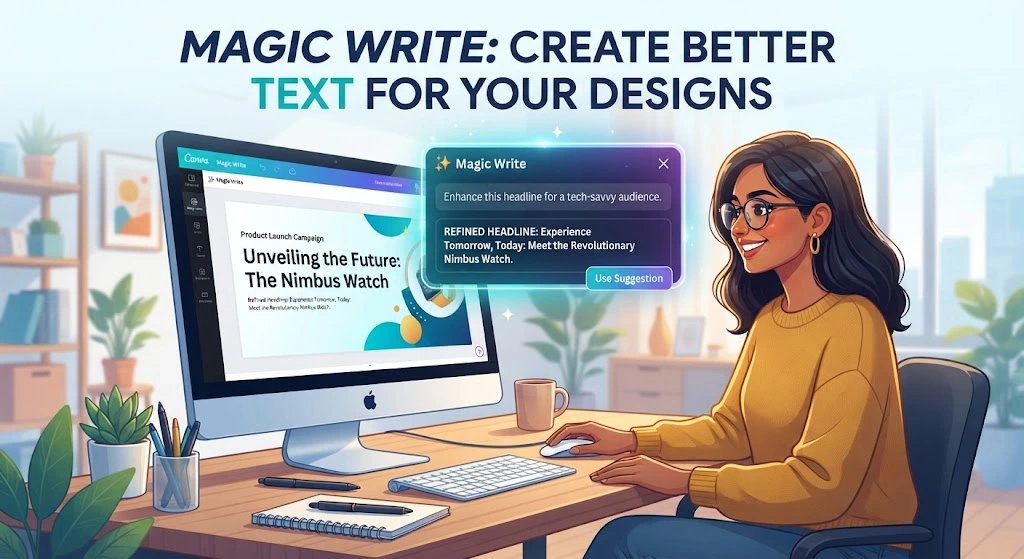
For example, an online business could use it to develop headline ideas for a product announcement.
Try a prompt such as:
“Write five short social media headlines for a small business launching a new collection of handmade accessories. Keep the language friendly, simple, and professional. Avoid exaggerated claims.”
Review the suggestions and choose the wording that best represents your business.
You can use AI-assisted writing to develop:
- Social media headlines.
- Short promotional messages.
- Product descriptions.
- Educational graphic text.
- Presentation content.
- Calls to action.
- Campaign ideas.
Always review AI-generated text for accuracy, spelling, tone, and unsupported claims before publishing it.
3. Magic Media: Generate Images and Video Content
Finding the right image for a social media post or blog article can take considerable time.
Canva’s Magic Media offers AI-assisted media generation, including text-to-image and certain video-generation workflows, depending on current feature availability.
You describe the visual you want, and the tool attempts to generate a suitable result.
For example, a travel blogger could use this prompt:

“Create a realistic editorial photograph of a peaceful mountain village surrounded by green hills and misty peaks. Include a clear stream, soft morning sunlight, and natural colors. Use a balanced composition suitable for a travel blog. Do not include text, logos, or watermarks.”
The resulting image can serve as inspiration or a supporting visual if it meets your requirements.
AI-generated media may contain distorted details or unexpected objects. Check the result carefully, particularly when visual accuracy matters.
4. Magic Edit: Make Changes to Existing Images
Sometimes an image is almost perfect, but a particular element needs improvement.
Magic Edit supports AI-assisted editing of selected image areas. Depending on the available workflow, you can select part of an image and describe the change you want to make.

For example, a business owner may want to change a decorative element in a product photograph.
An example instruction is:
“Replace the selected decorative object with a small vase of white flowers. Preserve the original lighting, perspective, background, and photographic style.”
After editing, inspect the changed area and its surroundings. Check for unusual edges, inconsistent shadows, or details that do not match the original image.
Magic Edit is especially useful when you want to modify an existing visual instead of starting over.
5. Magic Expand: Extend an Image to Fit a New Layout
Images do not always have the right dimensions for every platform.
A photograph might work well in a square post but leave insufficient background space for a wide website banner.
Magic Expand can help extend an image beyond its original boundaries by generating additional surrounding content.

This can be useful when you need to:
- Adapt a photograph to a wider format.
- Add background space for a headline.
- Rework product photography for promotional graphics.
- Adjust a composition for a different layout.
- Create additional visual space around a subject.
Review the expanded areas carefully. Generated backgrounds may contain inconsistent textures, repeated patterns, or unnatural details.
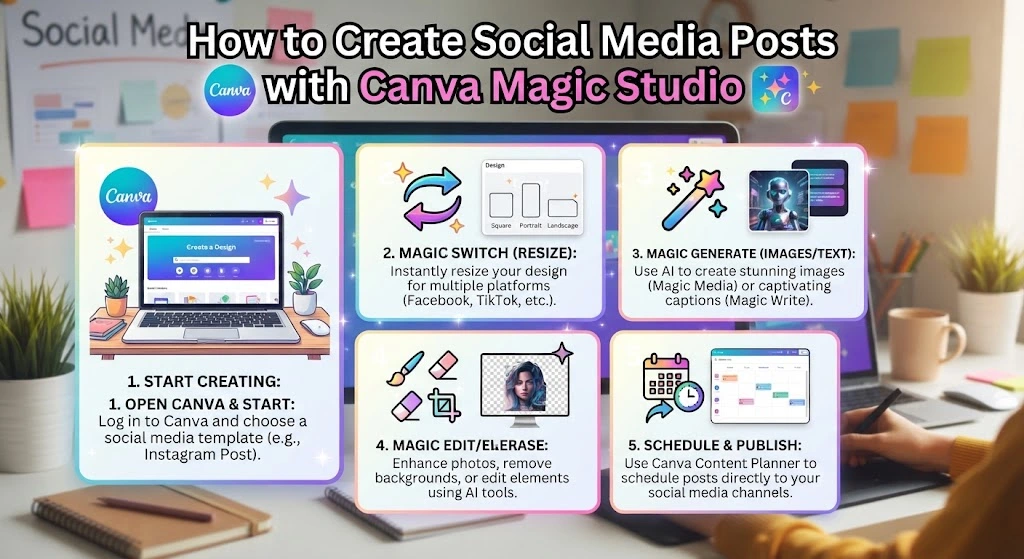
6. Magic Switch: Adapt Your Designs
Content creators frequently reuse ideas across multiple formats.
For example, a business might create a presentation about a new product and then want to adapt its content for a different format or audience.

Magic Switch supports design transformation and adaptation through available workflows.
Depending on the feature and account, this can help with changing formats, repurposing content, or translating supported text.
However, adapting a design does not guarantee that the layout will remain perfect. Check the spacing, typography, image placement, and text wrapping after making changes.
How to Create Social Media Posts with Canva Magic Studio
Creating a social media graphic becomes easier when you follow a consistent process.
Step 1: Choose Your Social Media Platform
Start by deciding where you intend to publish the graphic.
For example:
- Instagram for visual posts and educational carousels.
- Facebook for business announcements and promotional graphics.
- Pinterest for article promotions and visual guides.
- YouTube for video thumbnails and channel graphics.
- LinkedIn for professional insights and business content.
Choosing the platform first helps you plan the design format and the amount of text you need.
Step 2: Define Your Goal
Decide what you want the post to achieve.
Your goal might be to promote a blog article, introduce a product, announce an offer, share an educational tip, or encourage people to visit your website.
A clear objective helps you create a more focused design.
For example, a post promoting an AI tools article should communicate the value of the article rather than trying to include the entire guide in one image.
Step 3: Write a Detailed Prompt
A good AI prompt describes the subject, audience, visual style, colors, and layout.
Instead of writing only “make an Instagram post,” provide more context.
For example:
“Create a modern Instagram post for a website that publishes beginner-friendly AI tutorials. Use a clean digital aesthetic, dark blue and white colors, a simple illustration of AI tools, and space for a short headline and website logo. Make the composition professional and easy to read on a mobile screen.”
Detailed prompts provide a clearer creative direction, although results will still vary.
Step 4: Select a Suitable Design
Review the generated options and choose a design that matches your purpose.
Look for clear typography, suitable colors, balanced spacing, and a visual that communicates the topic.
Do not select a design only because it looks attractive. It should also be appropriate for your audience and message.
Step 5: Customize the Design
Replace placeholder wording with your own content.
Adjust the typography, background, visual elements, and layout. Add your logo and other brand assets where appropriate.
If the design includes promotional claims, prices, dates, or product details, verify that every statement is accurate.
Step 6: Check the Final Layout
Before exporting your design, check:
- Spelling and grammar.
- Headline readability.
- Image quality.
- Brand colors and fonts.
- Text placement.
- Overall spacing.
- Platform suitability.
- Any relevant licensing requirements.
Preview the graphic at a smaller size to make sure the text remains readable on mobile devices.
Step 7: Export and Publish
Download the completed design in a suitable format.
PNG or JPG can work well for many static graphics, while video projects require a supported video format.
Upload the file to the intended platform and add a caption that explains the message.
A good caption can provide additional context without repeating every word already displayed in the image.
Best Canva Magic Studio Ideas for Different Platforms

Instagram Posts
Instagram is a visual platform where clear messaging and attractive images can help content stand out.
You can create educational graphics, product announcements, promotional posts, and branded content.
For example, a technology blog could publish a graphic titled “5 AI Tools Worth Exploring.”
Keep the headline short and use the caption or a carousel to provide additional information.
Facebook Graphics
Facebook graphics can support announcements, promotions, event invitations, and blog sharing.
A local restaurant could create a graphic introducing a seasonal menu with an attractive food photograph, a clear headline, and relevant details.
Always check the dates, prices, and promotional conditions before publishing.
Pinterest Pins
Pinterest can help users discover blog articles, tutorials, recipes, and other visual resources.
Create a vertical graphic that communicates the main benefit of your article.
For example, a pin promoting this article might use the headline “Create Social Media Posts with AI.”
Make sure the image accurately represents the linked page and provides a useful reason to visit it.
YouTube Thumbnails
A YouTube thumbnail should help viewers understand the subject of a video.
Use a recognizable visual, readable headline, and uncluttered layout.
For a tutorial about AI design tools, you could include a laptop illustration and a short headline such as “Design with AI.”
Avoid misleading visuals or claims that do not reflect the actual video.
LinkedIn Graphics
LinkedIn graphics can support educational content, professional announcements, and business insights.
A clean layout with readable typography can help communicate one main idea.
For example, a digital marketer could create a graphic explaining three ways to improve a content creation workflow.
Focus on clarity and usefulness rather than excessive decorative effects.
Practical Canva Magic Studio Prompts
The following prompts can help you get started with different types of content.

Prompt 1: Instagram Promotional Post
“Create a modern Instagram promotional graphic for a small online business selling handmade home decorations. Use warm neutral colors, attractive product imagery, elegant typography, and a clean layout. Leave space for a short headline, a brief promotional message, and a small brand logo.”
Prompt 2: Pinterest Blog Pin
“Design a vertical Pinterest pin for an educational blog article about beginner-friendly AI tools. Use a modern technology-inspired visual style, a clear headline area, simple illustrations, and a balanced composition. Make the design easy to read on mobile devices.”
Prompt 3: YouTube Thumbnail
“Create a professional YouTube thumbnail concept for a tutorial about creating social media posts with AI. Use a clear focal point, strong contrast, a modern design workspace, and space for a short headline. Keep the composition simple and relevant to the video.”
Prompt 4: Facebook Business Graphic
“Create a friendly Facebook promotional graphic for a local coffee shop introducing a seasonal menu. Include attractive coffee imagery, warm colors, and space for a headline and offer details. Use a professional, uncluttered layout.”
Prompt 5: Educational Carousel
“Develop a consistent visual concept for a five-slide social media carousel teaching beginners how to write better AI prompts. Use a clean editorial style, consistent typography, simple illustrations, and a limited color palette. Each slide should communicate one main lesson.”
Prompt 6: Blog Featured Image
“Create a professional horizontal featured image for an article about AI-powered graphic design. Show a modern creative workspace, a laptop with colorful abstract design layouts, and subtle artificial intelligence motifs. Use a polished editorial style with balanced composition and space for a headline.”
These prompts are starting points. You may need to adjust them based on the selected tool, the generated results, and your design requirements.
Canva Magic Studio for Bloggers and Website Owners
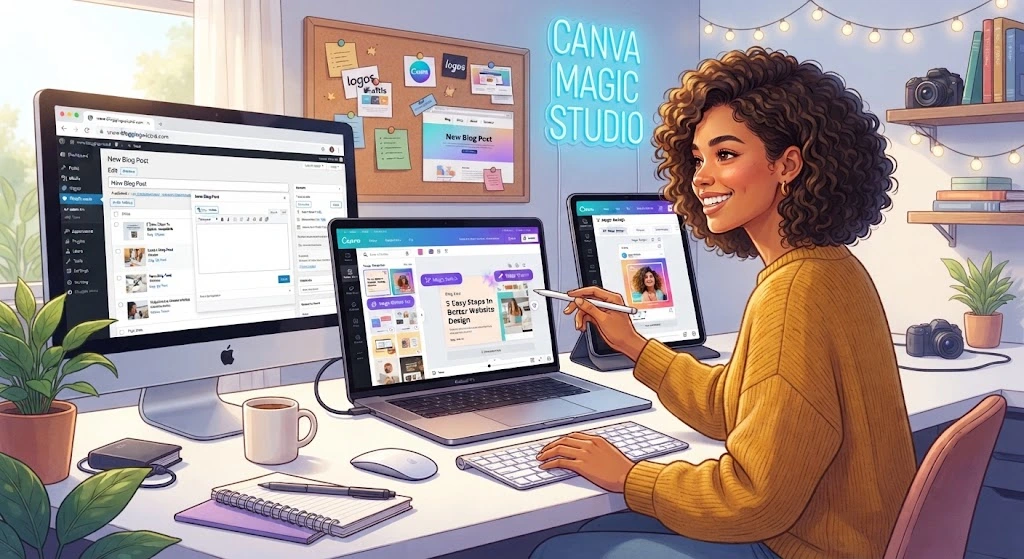
Canva Magic Studio can support more than social media publishing.
Bloggers and website owners can use AI-assisted design to create featured images, article illustrations, promotional graphics, and visual resources for different channels.
For example, an AI tools website could publish an article about image generators and create several supporting graphics for it.
The featured image introduces the topic. A second image can illustrate the main features, while a Pinterest pin can promote the article to a wider audience.
Using a consistent visual style across these assets can make the website feel more professional.
Create Better Blog Featured Images
A featured image should relate directly to the article’s subject and complement its title.
Use a relevant visual rather than adding unrelated decorative elements.
For this article, a suitable featured image could show a digital design workspace, colorful social media layouts, and subtle AI-inspired graphics.
If the title is added manually, you can control the spelling, font, and placement more precisely.
Promote Articles Through Pinterest
Pinterest graphics can help readers discover useful content.
Create a vertical pin with a concise headline and a visual that reflects the article’s main benefit.
For this guide, you could use the title “Canva Magic Studio: Create Social Media Posts with AI.”
Link the graphic to the relevant article and make sure the page delivers what the pin promises.
Maintain Consistent Website Branding
A consistent color palette, typography, and visual style can help connect your website’s articles.
Choose a recognizable design approach for featured images, category graphics, and promotional assets.
You can adapt individual layouts to suit each article without making every graphic look completely different.
Tips for Getting Better Results from Canva Magic Studio

Keep Your Message Clear
Every graphic should have one main purpose.
Avoid placing too much information in a single image. Use captions, article text, or carousel slides to provide supporting details.
Use Consistent Brand Colors
Choose a small set of colors that represent your brand.
For example, an AI tools website might use blue, white, and purple accents. A natural lifestyle blog might use green, cream, and muted brown.
Consistency helps audiences recognize your content.
Choose Readable Typography
Use clear fonts and establish a visual hierarchy between headings and supporting text.
Avoid using too many font styles in one graphic.
Review AI-Generated Images
AI-generated images may contain unexpected objects, distorted details, or inaccurate representations.
Check the final output carefully, particularly when using images in advertisements or educational materials.
Leave Enough Empty Space
Empty space helps separate the headline, main visual, and supporting information.
A graphic does not need to fill every area with text or decorative elements.
Add Your Own Creative Ideas
AI-generated designs can look generic when they rely on common prompts and templates.
Personalize your work with original writing, your own photographs, brand assets, and thoughtful layout decisions.
Check Copyright and Licensing
Before using any generated image, template, or library asset commercially, review the applicable terms and permissions.
Do not assume that AI-generated content is automatically exclusive or free of third-party rights concerns.
Is Canva Magic Studio Free?
Canva provides free and paid account options, but access to individual Magic Studio features can vary.
Some AI-assisted features may be available with usage limits, while others may require a paid plan. Available features and allowances can also change over time.
If you are a beginner, explore the features available in your account before deciding whether you need a subscription.
If you regularly create content for a business or manage several projects, compare the current plans against your actual requirements.
Check the official Canva website for current plan details and feature availability.
Advantages and Limitations of Canva Magic Studio

Advantages
Saves time: AI-assisted tools can help generate initial concepts and reduce repetitive design work.
Beginner-friendly: The visual interface can make design more accessible to people without advanced graphic design skills.
Supports multiple formats: Canva can help you create different types of visual content for online publishing.
Provides creative inspiration: AI-generated concepts can help you explore alternative layouts and styles.
Supports content adaptation: Available features can help you repurpose designs for different uses.
Limitations
Results need editing: Generated designs may contain awkward spacing, unsuitable imagery, or other visual problems.
Some features have restrictions: Availability and usage allowances depend on the account and feature.
Outputs may resemble other designs: AI-generated results should not be assumed to be unique.
Manual review remains necessary: You must check spelling, factual accuracy, and design quality.
Licensing still matters: Users must follow applicable content permissions, platform terms, and intellectual property requirements.
Canva Magic Studio can be useful for routine creative work, but it does not eliminate the need for careful design decisions.
Frequently Asked Questions
1. What is Canva Magic Studio?
Canva Magic Studio is a collection of AI-powered creative tools that help users generate designs, work with text, create images, edit visuals, and develop digital content.
2. Can I use Canva Magic Studio to create social media posts?
Yes. Canva’s design tools and available AI features can help you create graphics for supported social media formats, including Instagram posts, Facebook graphics, Pinterest pins, and YouTube thumbnails.
3. Is Canva Magic Studio free?
Some features may be available to free users, while others may require a paid subscription or have usage limits. Check your account for current availability.
4. Is Canva Magic Studio suitable for beginners?
Yes. Beginners can use its AI-assisted features and visual editing tools to explore design concepts without needing advanced graphic design experience.
5. Can Canva Magic Studio generate images?
Canva offers AI-assisted image generation through its media tools. You can describe the image you want and review the generated result before using it.
6. What is the difference between Magic Design and Magic Media?
Magic Design focuses on helping users generate design concepts and layouts. Magic Media focuses on AI-assisted media generation, including supported image and video workflows.
7. Can I use Canva Magic Studio for commercial purposes?
Commercial use depends on the applicable terms, asset licenses, and other rights associated with your project. Review Canva’s current policies before using content commercially.
8. Can bloggers use Canva Magic Studio?
Yes. Bloggers can use Canva to develop featured images, Pinterest pins, article illustrations, and promotional graphics for social media.
9. Can Canva Magic Studio replace a professional graphic designer?
It can simplify many routine design tasks, but complex branding, specialized illustration, and detailed creative work may still require professional expertise.
10. How do I create better AI designs?
Write clear prompts, specify your intended audience, select suitable colors, and review the generated results. Customize the layout and check the final graphic before publishing.
Conclusion
Canva Magic Studio provides a practical way to explore AI-assisted design and create visual content for websites, businesses, and social media.
Its features can help users develop design concepts, create graphics, edit images, and adapt content for different formats. These capabilities can be particularly useful for bloggers, marketers, freelancers, and small business owners who regularly need new visuals.
However, AI should be treated as a creative assistant rather than a substitute for thoughtful design. The best results come from combining AI-generated ideas with your own content, brand identity, and quality checks.
If you want to make your content creation process more efficient, explore the available tools and experiment with different prompts.
Visit the official Canva website to discover its design features and find out which AI tools are available for your account.